Are you looking for a way to extract data from PDF documents? Well, you’re at the right place. Manually typing PDF data is often the first solution, but it fails most of the time for a variety of reasons. In this article, we talk about the PDF data extraction tool Tabula and how to use it.
What is Tabula?
Tabula provides a visual PDF data extraction interface to select which data fields to gather from PDF tables conveniently and automatically. Tabula is a free, open-source tool built for scraping data from PDF tables. Tabula is an offline software, available underthe MIT open-source license for Windows, Mac, and Linux operating systems.
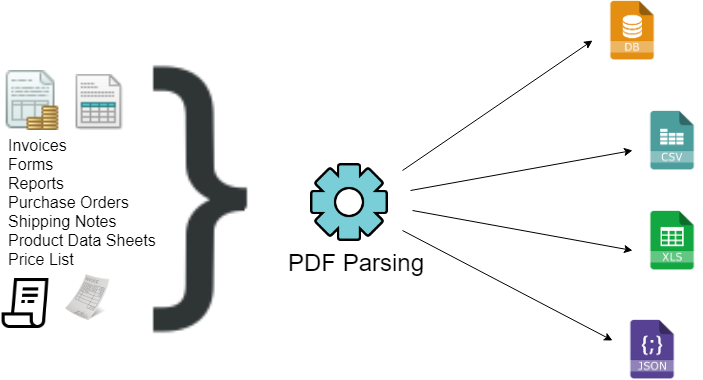
Data extraction from PDFs can be applied in many applications:
- Artificial Intelligence
- Business Process Automation
- E-Discovery
- Machine Learning
- Decision Logic Applications
- Data Science And Analytics
- Account Automation – Reading Invoices and Purchase Orders
- Searching through thousands of PDFs
- Extracting data from Shipping Notes and automating the delivery tracking process.
Tabula Features:
- Visual PDF data extraction tool: it provides a visual editor to allow you to select data to extract.
- Copy result to the Clipboard or Export to a file format like CSV, TSV, etc
- its Command Line Utility: Tabula Command Line Utility can be used as a Windows console utility that can be used to extract data from a large number of PDF files.
- You do not need to copy PDF text information from hundreds of PDF files again and again. Free from copy-paste hassles.
Tabula in Practice:
Let us explore how Tabula can be used.
Download and Installation:
- Tabula works in a Java environment, so Windows and Linux users will have to download java runtime environment if they don’t already have it. You can download Java here. it is for Mac OS X, which comes with Java. Download the version of Tabula for your operating system. Click here to download Tabula.
-
Extract the downloaded zip file
-
Inside the extracted folder, you will find a file named “tabula.exe” and run it by double clicking it.
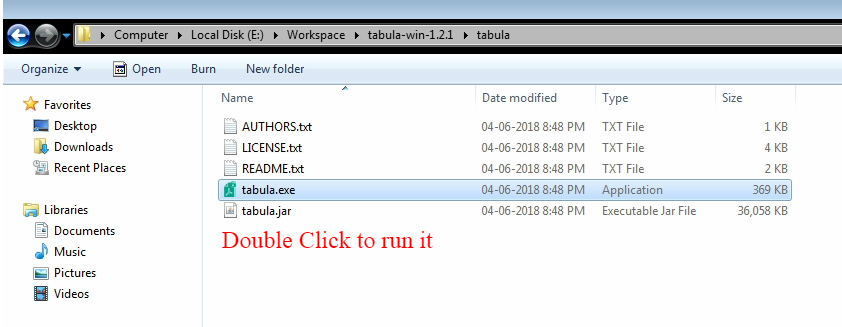
4. After running the program, a web browser will open. If it doesn’t, open a web browser of your choice, and go to http://localhost:8080. There’s Tabula!
How to use Tabula:
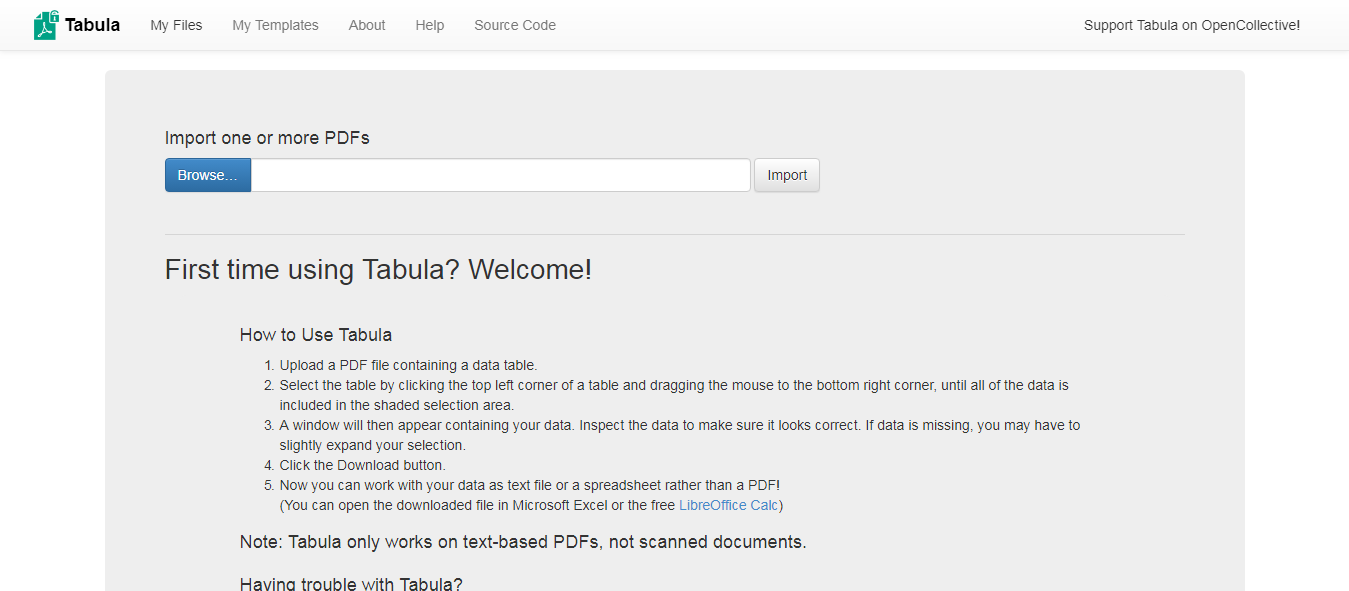
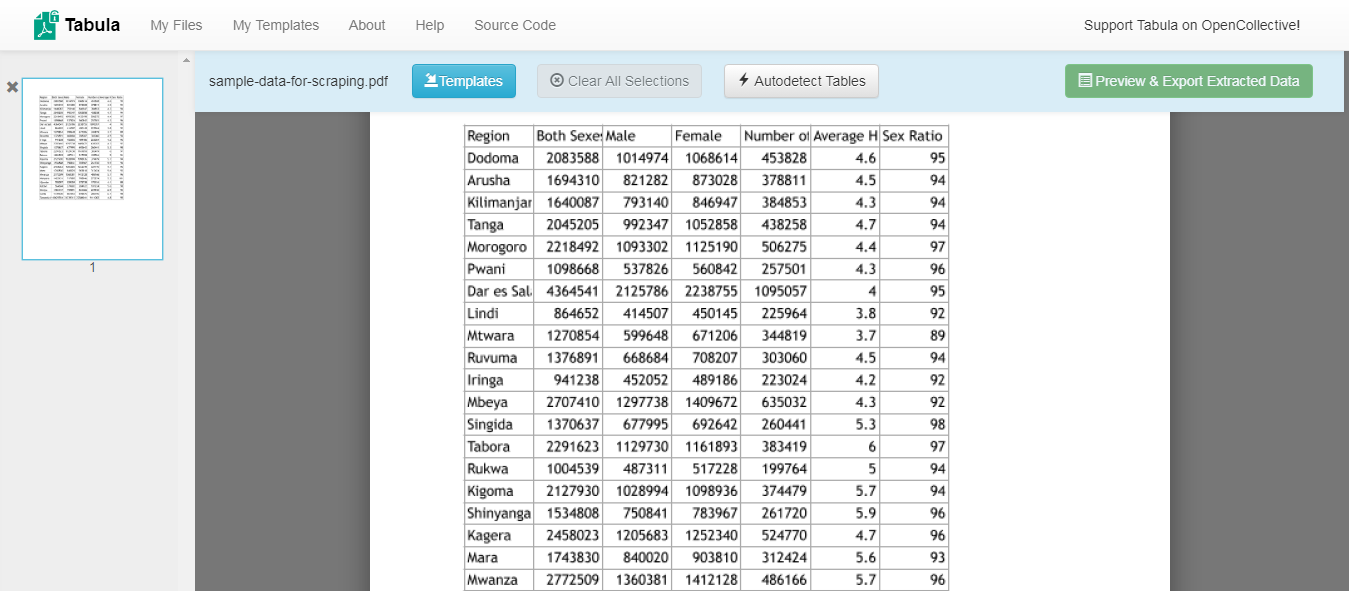
Upload PDF File:In home screen you will find file selection option where you need to browse and upload PDF file from which you want to extract data. After selecting the file, click on the Import button. After submission, you will be shown uploaded PDF file as shown in the screenshot below:
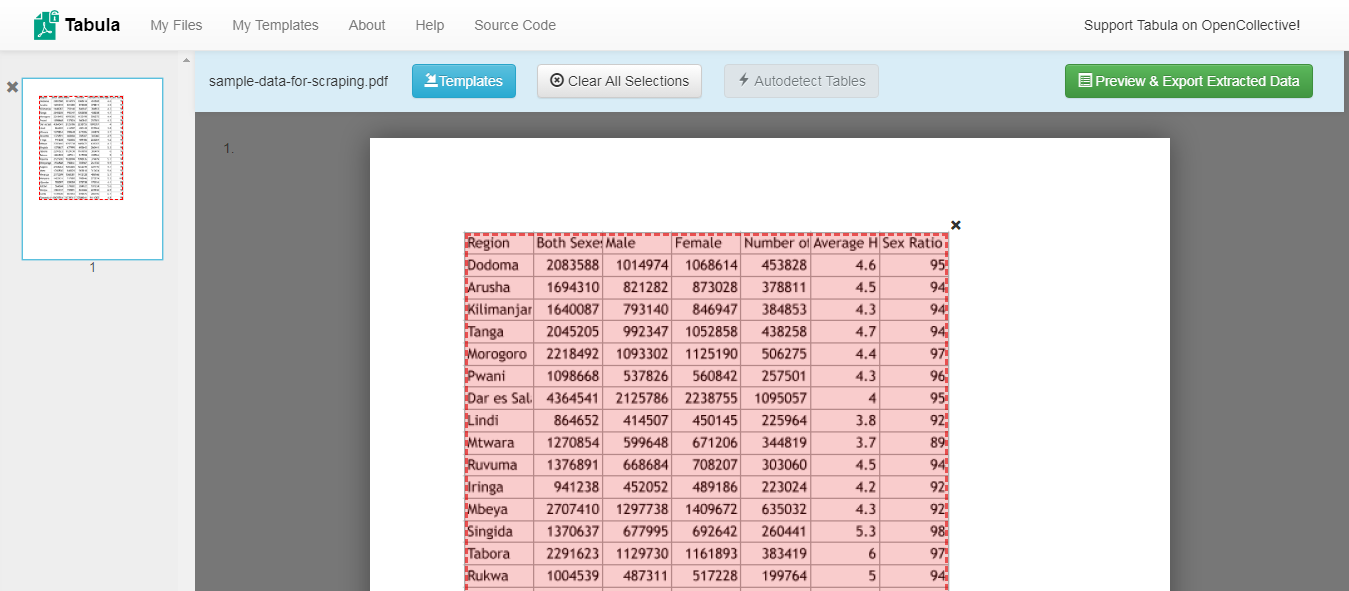
Make table selection:Now you need to move to the page from where you want to extract table data, then select the table by clicking and dragging to draw a box around the table. You can also click on “Autodetect Tables” option which will select the tabular data automatically.
Preview Data: After table selection “Preview & Export Extracted Data” button will be enabled. Click on that button to preview the data. Preview is shown in the screenshot:
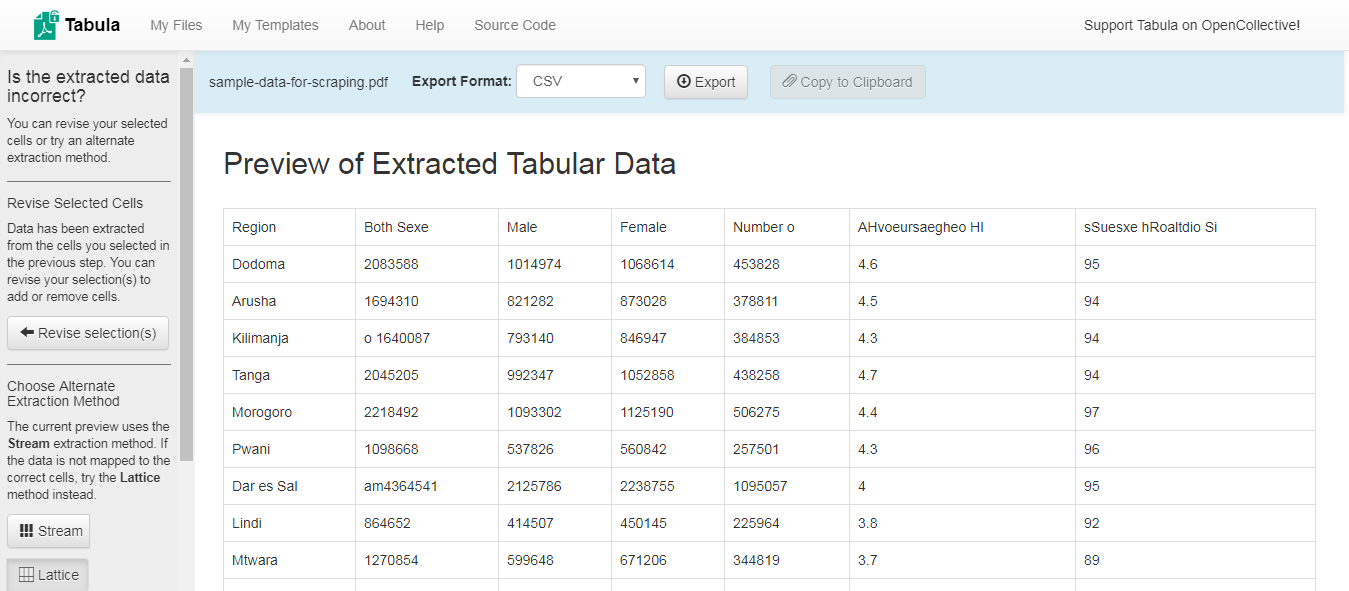
Tabula has two types of extraction methods. Stream and Lattice. Stream looks for white space between columns, while Lattice looks for boundary lines between columns. If the data is not mapped to the correct cells, you can try the alternate method instead.
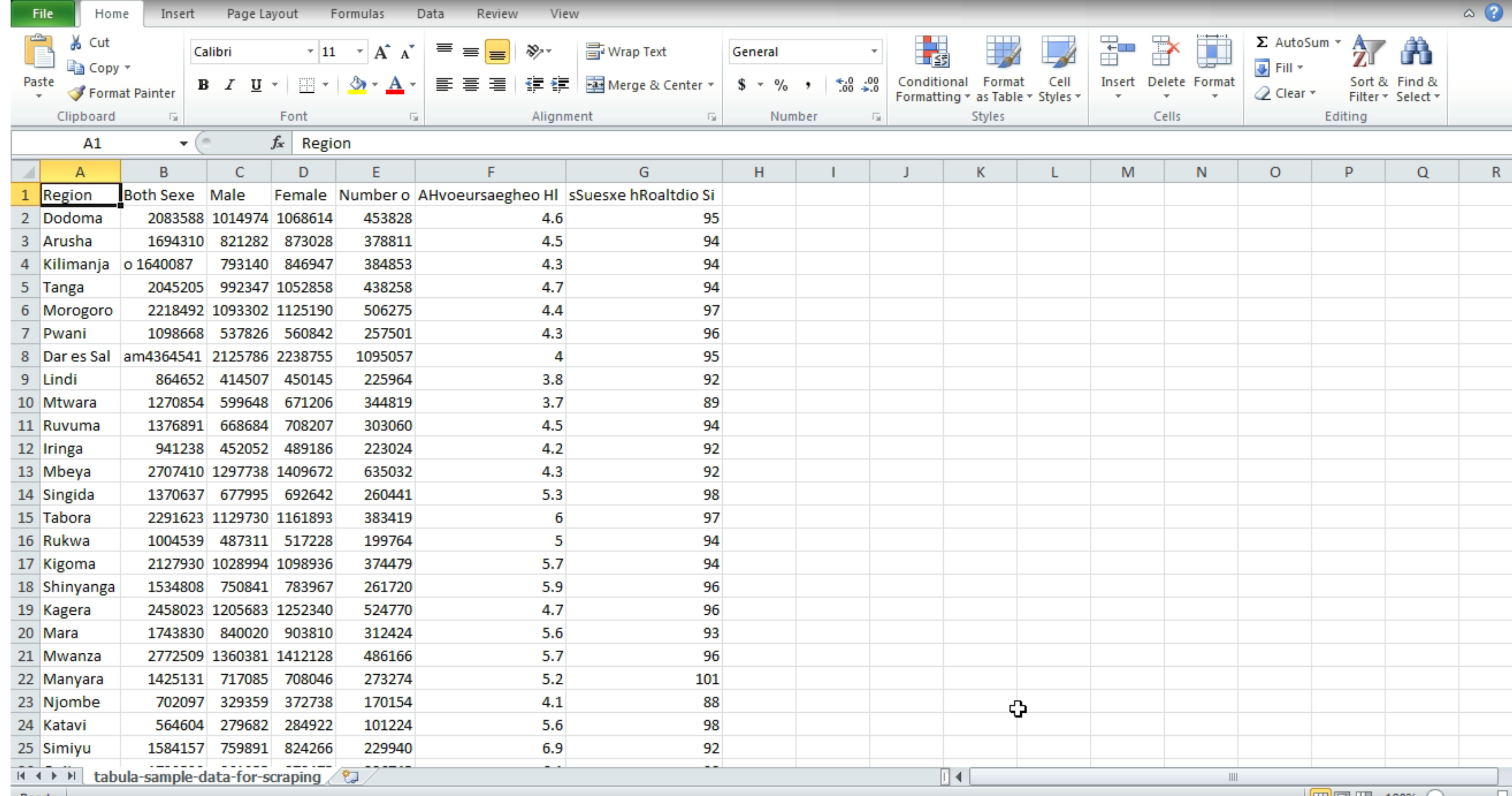
Export Data:N ow you can copy data to the clipboard and paste it anywhere you want or you can export the data to a variety of file formats like CSV, TSV, JSON, etc. The following screenshot showsthe exported CSV file:
Tabula Command Line:
Suppose you have thousands of separate PDF files, and each page is organized in the same way, and you want the same table from the middle of the page. Trying the Tabula web version will not be practical here because you need to go through the “upload and process” approach again and again. You can use tabula-java, the engine that powers Tabula, as a standalone command-line tool to handle these situations.
Download a version of the tabula-java jar, with all dependencies included, that works on Mac, Windows, and Linux from the GitHub releases page.
Syntax
java -jar /path/to/tabula/tabula-1.0.2-jar-with-dependencies.jar -p all -a $y1,$x1,$y2,$x2 -o $csvfile $filename
- y1 = top coordinate of the table
- x1 = left coordinate of the table
- y2 = top + height
- x2 = left + width
- csvfile: Name of the target CSV file to which data is to be written
- filename: Name of the source PDF file from which data is to be extracted
Example:
java -jar /path/to/tabula/tabula-1.0.2-jar-with-dependencies.jar -p all -a 71.0,71.0,530.0,456.56 -o output.csv source.pdf
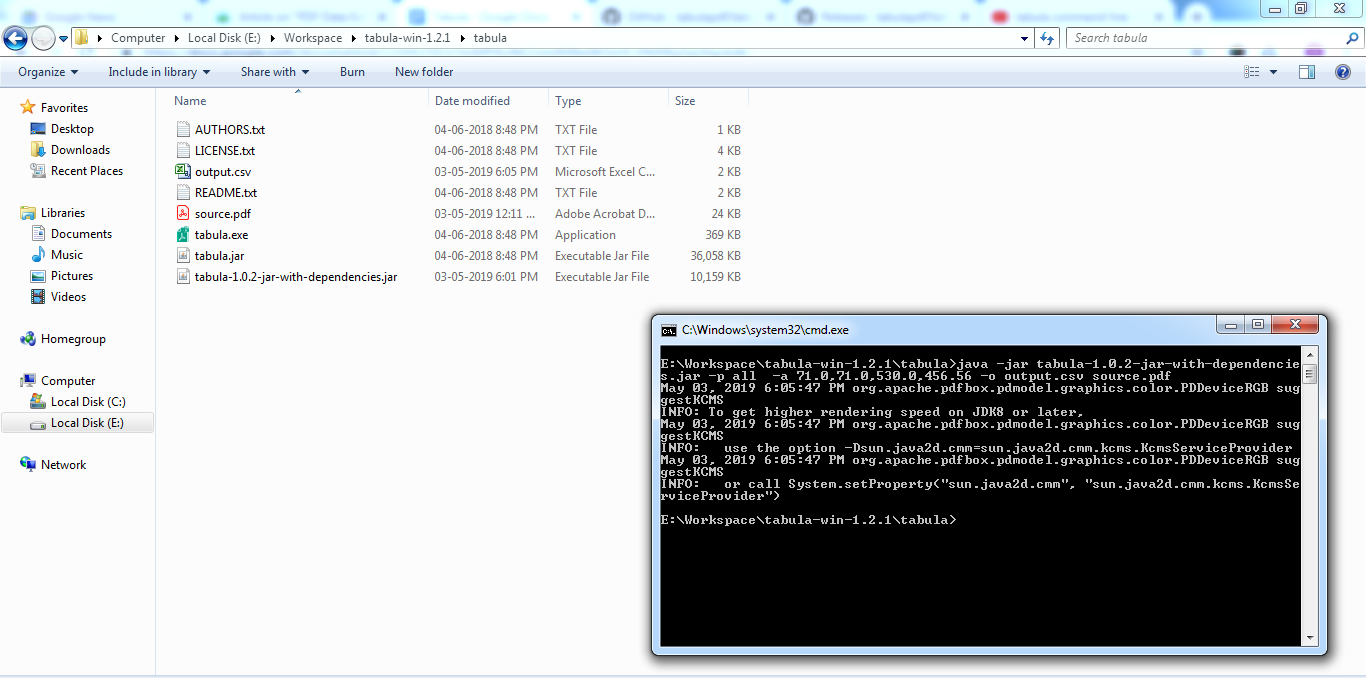
You can write a script like this to iterate over many identical-format PDFs in a directory:
for f in /path/to/dir/*.pdf; do
  java -jar /path/to/tabula/tabula-1.0.2-jar-with-dependencies.jar -p all -a 49.5,52.3285714,599.6571428,743.91428571 -o $f.csv $f
done
Tabula Limitations:
Tabula is an excellent PDF data extraction option, but it has certain limitations:
- Tabula is not capable of extracting data from multiline rows or merging cells.
- Tabula is only able to process Text-based PDF. It is not possible to extract data from a scanned PDF document using Tabula because it does not include OCR engines.