
Web Content Extractor is an excellent web scraping software developed by the Newprosoft Team. The software includes an easy-to-use project wizard to create a scraping configuration and scrape data from websites.
One day I came across the Visual Email Extractor which is also a product of Newprosoft and similar to Web Content Extractor. The main point of difference was that the Visual Email Exctractor’s primary use is to scrape email addresses by crawling websites you feed to the scraper. I noticed that with little modification in the Web Content Extractor project configuration, you can use it to perform similar functions as Visual Email Extractor to extract email addresses.
In this post I will show you what configuration makes the Web Content Extractor extract email addresses. I still recommend Visual Email Extractor as it has a lot more features than extracting email using WCE.
Here are the configuration that makes WCE Extract Emails –
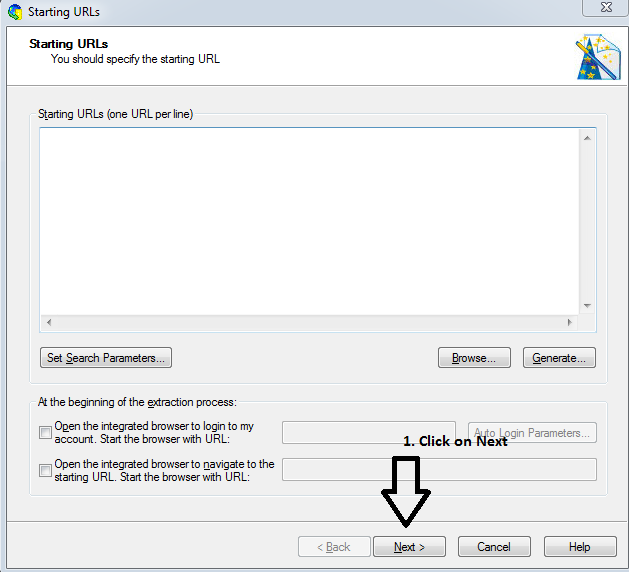
Step 1: Open Web Content Extractor, Create New Project, and Click on Next.
Step 2: Under Crawling Rules -> Advanced Rules Tab. Now adjust the settings as described below.
Crawling Level 1 Settings
Follow Links if link text equals:
*contact*; *feedback*; *support*; *about*

for 'Follow Links if link text equals' text box enter following values:
contact; feedback; support; about

for 'Do not Follow links if URL contains' text box enter following values:

google.; yahoo.; bing; msn.; altavista.; myspace.com; youtube.com;
googleusercontent.com; =http; .jpg; .gif; .png; .bmp; .exe; .zip; .pdf;

set 'Maximum Crawling Deapth' to 2

set 'Crawling Order' to Deapth First Crawling

Tick mark below below check boxes:

-> Follow all internal links
Crawling Level 2 Settings
set 'Follow links if link text equals' to below value

*contact*; *feedback*; *support*; *about*

set 'Follow links if url contains' text box to below value

contact; feedback; support; about

set 'DO NOT follow links if url contains' text box to below value

=http
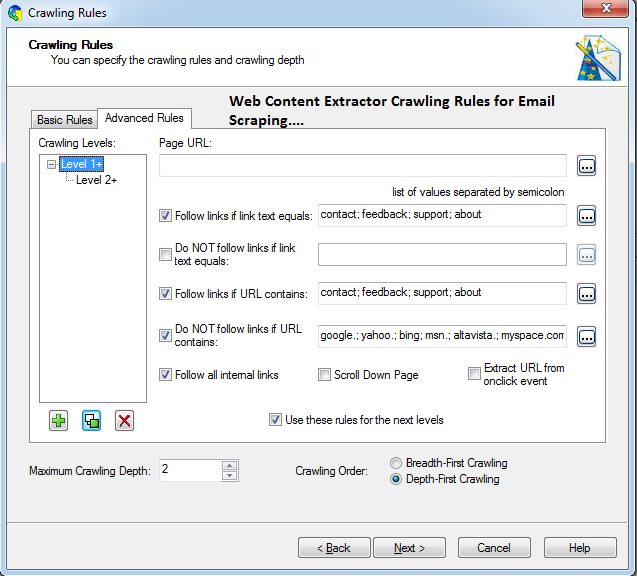
Web Content Extractor Settings
Step 3: After configuring the above settings, click on Next -> in Extraction Pattern window -> click on Define -> in Web Page Address (URL) give any URL to scrape emails. Click on the “+” sign right of Date Fields to define the scraping pattern.
Now inside HTML Structure select the HTML check box or Body check box which means for each page it will take whole page content to parse data.
Now its final setting is to extract emails from the page using a regular expression-based email extraction function. Open the Predefined Script window, select ‘Extract_Email_Addresses‘, and click on OK. If you have used a page that contains email then in Script Result’ you will be able to see the harvested email.
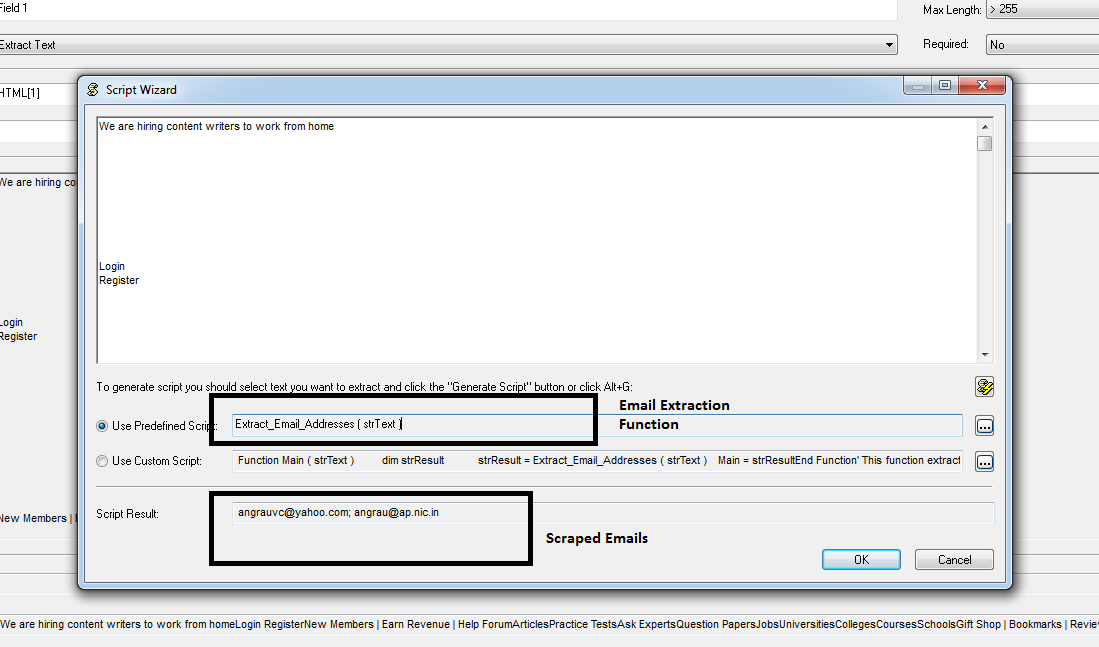
Email Extraction Script Settings
Hope this will help you to use your Web Content Extractor as an Email Scraper. Share your views in comments.