
 XPath is a query language for selecting nodes from HTML or XML document. XPath is used to navigate through elements and attributes in an HTML or XML document. Xpath is inevitable part of web scraping. To extract web element, one must know what is its XPath. Most of the web scrpaing software comes with inbuilt functionality to generate xpath expression easily and some browsers also support facility to inspect XPath but it lacks some advanced functionality. Keeping in mind these limitations, we have made a special tool for XPath Selection named “Xpath Generator”.
Features of XPath Generator 1.0:
- This is a simple Windows tool, that allows one to visualize the results of an XPath query on a live HTML document.
- Xpath Extractor has a Point and Click Interface using which one can easily make xpath expression .
- This tool runs better than other existing XPath online tools as it supports Xpath selection even if right click is disabled.
- It also suggests several alternative XPath of the selected element.
- One can view inner HTML and Plain text of the selected element.
- This tool allows creating list of Xpaths and Exporting them into CSV.
- It’s simple, basic, and effective xpath query tool for generating xpath query, It can also be used as xpath checker tool.
- And it’s completely FREE…
How to use XPath Generator?
Now Let’s have look at XPath Generator from Practical Perspective. Before we jump over the example you can download Xpath tool from here
Example #1: Simple
Very first, Copy-Paste the URL of target website from which you want to inspect element and capture XPath.
Here we are simply using google.com as an example and click on the go button. After that the Target website will be fully loaded.
Initially the browser will be in Navigation Mode means that you can navigate within browser to move to the desired web page.
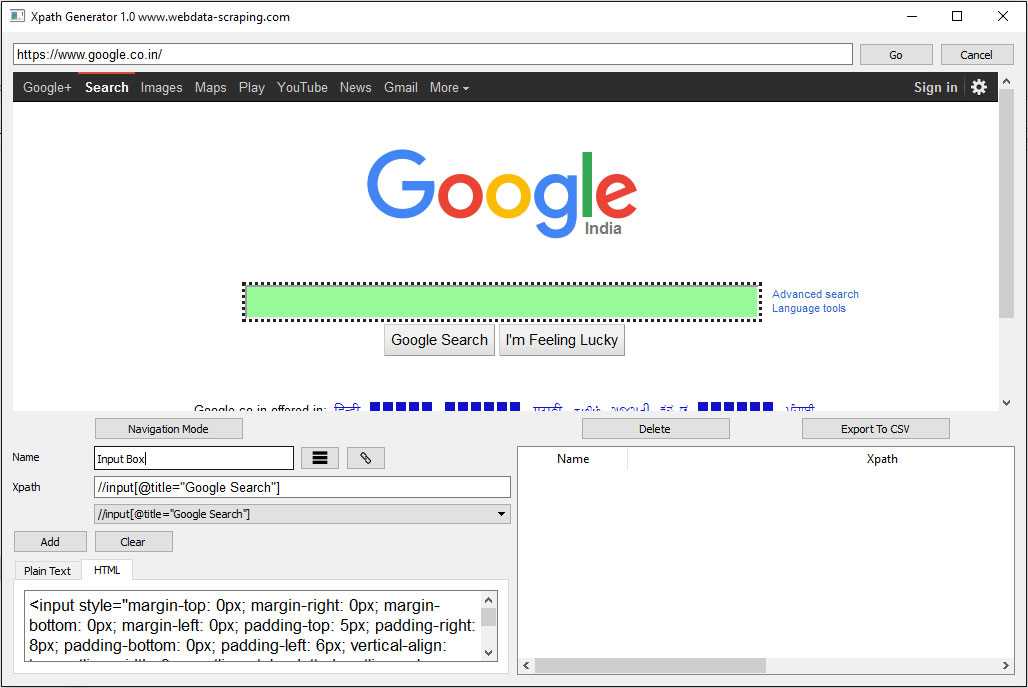
For selection, one need to switch to selection mode by clicking “Selection Mode” button. Here we want to get XPath of Search Textbox so hover over the textbox, it will be highlighted, after that click on that textbox. All the possible XPath will be shown. To save Xpath give a name to it “Input Box” and Click Add. After that Xpath will be added to the list on the right pane.
Later saved XPath can be exported to CSV file.
Example #2: Complex
Let’s try to generate XPath from the complex website bizfinder.in. Copy-Paste the link in the address bar of the XPath Generator and Click Go
The website will be loaded in the tool. After that scroll down on the “Recent Listings” section and click on any one business listing item. Wait to load the business listing page in the browser.
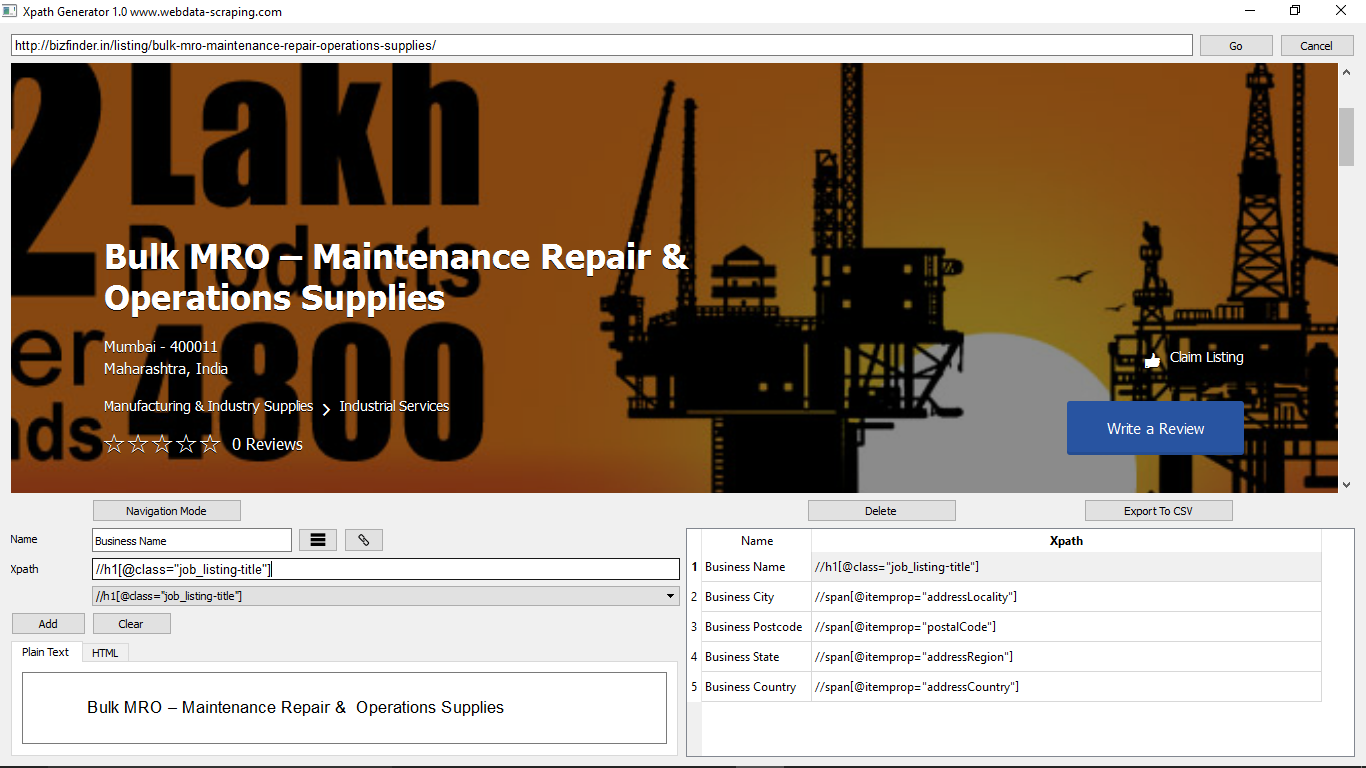
On that page we want to get XPath of various fields like Business Name, City, PostCode, State and Country.
To get business name, hover the cursor over the business name and it will be highlighted. Click on that element and the various possible XPath will be shown. Save the best XPath to the list.
Devs, If you like the tool, please don’t forget to mention it in comments. If you have suggestions on how we can improve the Xpath Extractor tool, you are most welcome to write in comments.

Comments are closed.