Walmart is one of the world’s largest retailers, offering millions of products across categories like electronics, groceries, clothing, and household essentials. With such a massive catalog, Walmart’s online store has become a valuable source of data for researchers, analysts, and businesses looking to track prices, monitor stock, analyze customer sentiment, and study product trends.
In this blog, we’ll walk you through how to scrape Walmart product data using Python. You’ll learn how to collect information such as product details, prices, availability, reviews, and images directly from Walmart’s website.
Follow a step-by-step process from setup to coding and saving data, so you can build your own Walmart scraper for analysis.
Why Scrape Walmart Data?
Walmart is one of the largest retailers in the world, with millions of products listed online. Having access to this data can be extremely valuable. For example:
- Market research & price comparison – See how Walmart sets prices and compare them with other retailers.
- Tracking product changes – Monitor when products go out of stock or when prices drop.
- Competitor analysis – Businesses can analyze Walmart’s offerings to adjust their own strategies.
- Academic or personal projects – Students and researchers can collect datasets for practice or studies.
Manually checking products takes too much time. A Python scraper automates the process, making it faster and more reliable.
Why Use Python to Scrape Walmart Data?
There are many programming languages, but Python is especially popular for web scraping. Here’s why it’s a great choice:
- Beginner-friendly – Python is simple to learn and read.
- Powerful libraries– Tools like requests, BeautifulSoup, and pandas make scraping and data handling much easier.
- Community support – If you face issues, you’ll find tutorials, forums, and ready-made solutions online.
- Data analysis ready – Python works smoothly with libraries like pandas and NumPy to clean, analyze, and visualize your data.
- Scalable– You can start small and later add advanced tools like Selenium or Scrapy if you need more power.
In short, Python gives you everything you need to scrape Walmart effectively and turn raw HTML into useful insights.
Preparing the Python Environment
Let’s set up everything you need:
- Install Python(if you don’t have it) – Download from python.org.
- Install libraries – Run the following in your terminal or command prompt:
- pip install requests beautifulsoup4
- Create a project folder – Keep your scraper code and output files organized. For example:
- walmart_scraper/
- scraper.py
- requirements.txt
- output.csv
- walmart_scraper/
This will set up your environment and ensure you’re ready to start scraping.
What Data Will We Extract?
In this tutorial, our scraper will capture key product information from Walmart’s website, including:
| Data Field | Description |
|---|---|
| Product ID | Unique identifier assigned to each product |
| Category / Type | Product classification or category |
| Brand | Manufacturer or brand name |
| Average Rating | Average customer rating score |
| Short Description | Brief summary of the product |
| Thumbnail Image URL | Link to the product’s thumbnail image |
| Price | Current listed price of the product |
| Currency | Currency used for the product price |
If you’re exploring similar scraping techniques for other retailers, you might also find our blog How to Scrape Costco Product Details (2025 Tutorial) helpful. It walks through a similar hidden API method using Python to extract structured product data.
Understanding Walmart’s Website Structure
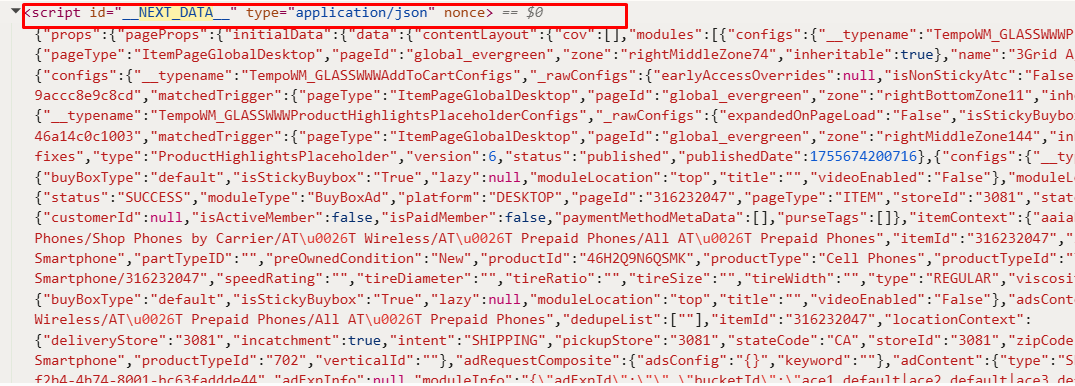
Walmart’s website is built using the Next.js framework, which means product information is loaded as structured data in the background rather than being directly available in static HTML. This data is stored inside a special script tag:

This script holds a complete snapshot of the product page, including pricing, availability, images, and seller details. Instead of targeting fragile HTML elements, we extract data directly from this internal source, which gives us a cleaner and more dependable way to access Walmart’s product information.
In the next section, you’ll use Chrome DevTools to visually locate this script and confirm exactly where the product data is stored before extracting it with Python.
How to Find Walmart’s Hidden Product Data Using Chrome DevTools
To scrape Walmart’s site efficiently, you need to locate where the site embeds product and review details on any product page. Chrome DevTools helps uncover this hidden JSON data, which is stored right in the page source.
- Open the Walmart Website
Visit walmart.com and go to any product page, e.g, search for “Smartphone” and click on any listing. - Open Chrome DevTools
Press F12 (or right-click → Inspect) to launch DevTools. By default, it opens in the Elements tab. - Search for the Embedded Product JSON Script
Switch to the Elements tab and press Ctrl+F (search). Type “__NEXT_DATA__” in the search box. Chrome will highlight the script tag:
Extracting JSON Data from Walmart’s Website
Now that you’ve explored Walmart’s website structure and found where product data is hidden inside the __NEXT_DATA__ JSON, let’s extract it using Python.
Step 1: Import Libraries
We’ll use Python’s most popular web scraping libraries, requests and BeautifulSoup, to fetch and parse the webpage, and JSON to decode the embedded data.
import requests
from bs4 import BeautifulSoup
import json
Step 2: Send Request and Parse the Page
Let’s start by loading a Walmart product page (you can replace the URL with any product of your choice):
# URL of the Walmart product page
url = "https://www.walmart.com/ip/AT-T-Alcatel-Volta-16GB-Suede-Gray-Prepaid-Smartphone/316232047"

# Headers to mimic a browser
headers = {
    "User-Agent": "Mozilla/5.0 (Windows NT 10.0; Win64; x64) Chrome/120.0.0.0 Safari/537.36",
    "Accept-Language": "en-US,en;q=0.9",
}

# Get the webpage
response = requests.get(url, headers=headers)

# Parse the page content using BeautifulSoup
soup = BeautifulSoup(response.text, 'html.parser')- requests.get() fetches the HTML from the product page.
- Headers are used to mimic a real browser and avoid blocking.
- BeautifulSoup parses the HTML so we can easily search for tags.
Step 3: Locate and Extract the Hidden JSON Data from the Walmart Page.
Walmart loads most of its product data dynamically using Next.js. This data is hidden inside a “script” tag with the ID __NEXT_DATA__. In this step, we locate that script and extract the complete JSON response.
# Locate the <script> tag containing the JSON
json_tag = soup.find("script", {"id": "__NEXT_DATA__"})
if json_tag:
    # Parse the JSON data
    full_json_data = json.loads(json_tag.string)

    # Print the entire JSON data as formatted output
    print(json.dumps(full_json_data, indent=4))
What This Step Does:
- Finds the hidden __NEXT_DATA__ script tag
- Converts the raw JSON text into a Python dictionary
- Prints the entire Walmart page data in a structured format
- Helps us inspect where the product data is stored internally
At this stage, we are extracting the full page JSON only for debugging and inspection. In the next step, we will drill down and extract only the required product fields such as name, price, brand, rating, and image URL.
Step 4: Save the Extracted Walmart JSON Data to a File
Now that we have successfully extracted the full JSON data from the Walmart product page, the next step is to save this data into a local file.
# Optionally, save the JSON data to a file
    with open("full_data.json", "w", encoding="utf-8") as file:
        json.dump(full_json_data, file, indent=4, ensure_ascii=False)

    print("Full JSON data has been saved to 'full_data.json'.")
else:
    print("JSON data not found on the page.")
What This Step Does:
- Saves the entire Walmart page JSON into a file named full_data.json
- Uses UTF-8 encoding to avoid text errors
- Prints the entire Walmart page data in a structured format
- Displays a confirmation message after successful saving
- Handles cases where JSON is not found
Output Example
Once you run the above code in Visual Studio Code, your output will look like this:
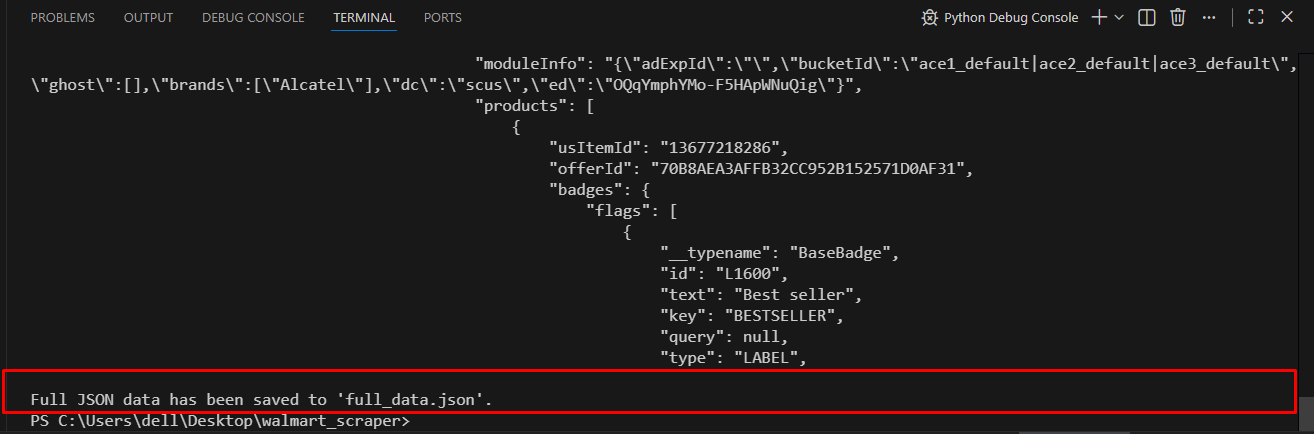
Note: After running the script, the extracted Walmart JSON data is saved as full_data.json in your project folder. You can open this file using any JSON Viewer such as JSONLint or JSON Formatter & Validator to easily explore the structure. These tools help you expand and navigate the data to quickly locate important product details like name, price, description, and reviews
Step-by-Step Process for Scraping Walmart Product Data
Now that you have successfully extracted and explored the full JSON data from Walmart’s website, it’s time to pull out only the meaningful product information we actually need. Instead of working with a massive JSON file, we’ll now focus on extracting clean, structured product data such as name, price, brand, rating, and image URL.
Let’s break this into simple steps.
Step 1: Load the Saved JSON File
Since we already saved the full JSON into a file (full_data.json), we’ll now load it back into Python for structured extraction.
import json

# Load the saved JSON file
with open("full_data.json", "r", encoding="utf-8") as file:
    data = json.load(file)
This step allows us to work with the extracted data without making repeated requests to Walmart.
Step 2: Navigate to the Product Data Section
Inside the large JSON structure, Walmart stores product details inside several nested keys. We now move through those layers to reach the product data.
product_data = data['props']['pageProps']['initialData']['data']['product']
At this point, you now have access to all key product information in a single variable.
Step 3: Extract Required Product Fields
Now we extract only the fields we defined earlier in our data list.
product_details = {
    'Product ID': product_data.get('id'),
    'Category/Type': product_data.get('type'),
    'Product Name': product_data.get('name'),
    'Brand': product_data.get('brand'),
    'Average Rating': product_data.get('averageRating'),
    'Short Description': product_data.get('shortDescription'),
    'Thumbnail Image URL': product_data['imageInfo'].get('thumbnailUrl'),
    'Price': product_data['priceInfo']['currentPrice'].get('price'),
    'Currency': product_data['priceInfo']['currentPrice'].get('currencyUnit'),
}
This step converts messy raw JSON into clean, readable product data.
Step 4: Display the Extracted Product Data
Now let’s print the extracted details in a structured format:
print(json.dumps(product_details, indent=4))
This helps you instantly verify whether the correct fields were extracted.
Step 5: Save Product Data to a JSON File
After running this process, your output will look like this:
with open("product_details.json", "w", encoding="utf-8") as file:
    json.dump(product_details, file, indent=4, ensure_ascii=False)
You now have a lightweight JSON file containing only the important product details.
Final Output Example
Finally, save the clean product data into a separate file:
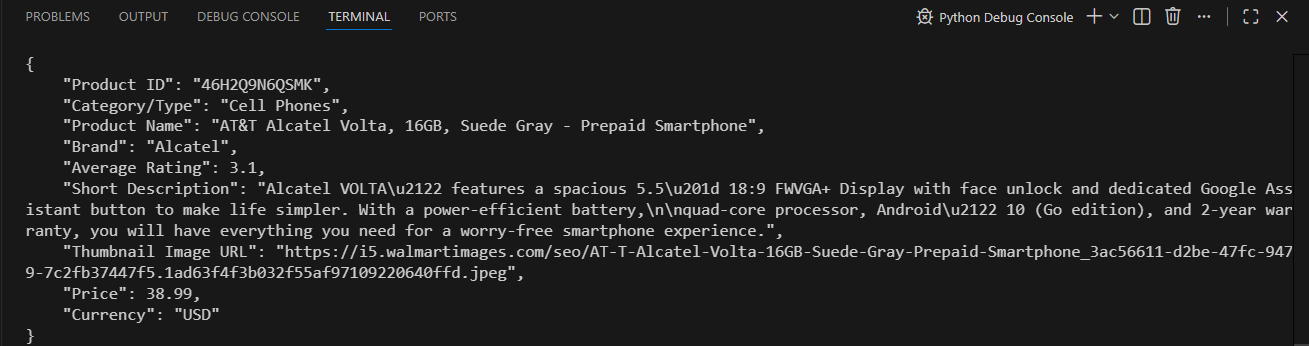
And the file extract_product_data_smartphone.py will be saved in your project folder.
Conclusion
Scraping product data from Walmart using Python and hidden APIs is faster, cleaner, and more reliable than traditional HTML scraping.
By inspecting the site with Chrome DevTools, you can uncover the hidden JSON endpoints Walmart uses, and then replicate the requests using Python’s requests module.
Whether you’re tracking prices, monitoring stock, collecting reviews, or building an internal analytics tool, this method saves time and provides structured, scalable results.
If you want to implement this approach at scale or need a customized scraping solution, contact ScrapeInsight.