AI continues to enhance web scraping, and teams can now describe the data they want and let AI collect it. But AI-scraped data is not always accurate. Fields can be missed, values can be misread, and results can change between runs. That is why scraped data still needs to be checked.
Sequentum helps address this with Agent Builder. It is the tool within Sequentum Cloud that builds a working agent from a plain English prompt and lets you check the data at every stage.
In this article, we look at Agent Builder through real testing: what we checked, what we found, and the value it delivered.
Common Pain Points of AI Web Scraping
AI has made web scraping look easy, but teams that rely on AI-driven scrapers often run into the same problems:
- Inaccurate Data: AI can misread a page, skip a field, or return a value that does not match what is on the website. Without a check, wrong data flows straight into reports.
- Inconsistent Results: When AI is used on every run, the same website can return different output each time. This breaks dashboards and downstream pipelines.
- No Visibility: Many AI scrapers work like a black box. Teams cannot see what the agent did or why a value came out the way it did.
- Hard to Fix: When a result is wrong or a website changes, there is often no direct way to correct the agent. Teams rerun the prompt and hope for a better outcome.
- Security Risk at Runtime: An AI model that reads live web pages can be influenced by hidden instructions on those pages. Giving it access on every run adds risk.
Agent Builder is designed to solve these problems, and the two examples below show how.
Two Ways to Use Sequentum Agent Builder
Agent Builder lives inside Sequentum Cloud and gives you two ways to work, depending on what your data job needs. In both cases, AI is used to build the agent, and the saved agent runs on fixed, repeatable steps.
- Agent Builder alone: You describe the data you need in a prompt. Agent Builder plans the navigation, builds the agent, extracts sample records, and validates the output. You preview the data, then run or schedule the agent. This is the fastest route from a data need to data in hand.
- Agent Builder with the Visual Editor: You start with the same prompt, then open the agent in the Visual Editor. There you can see every step, add fields or commands, adjust the structure, and run the agent, all without code. This route gives you full control over every detail in the final agent.
How We Tested Both Routes
We put Agent Builder to the test on real data collection tasks, using it in two ways. For each test, we tracked how long the build took, how accurate the first output was, and what we had to change. Here is what we found.
Use Case 1: Agent Builder Alone
The Need
We needed to find the number of Papa Johns stores in the state of Alaska, using the store locator at locations.papajohns.com. This sounds easy, but the data is spread across many pages. Alaska has 6 cities, and each city has 3 to 4 stores. To get the data, we have to open every city page, then open every store page, and extract the details one by one. Doing this by hand takes a lot of time, so we used Agent Builder with a prompt and let AI do the work.
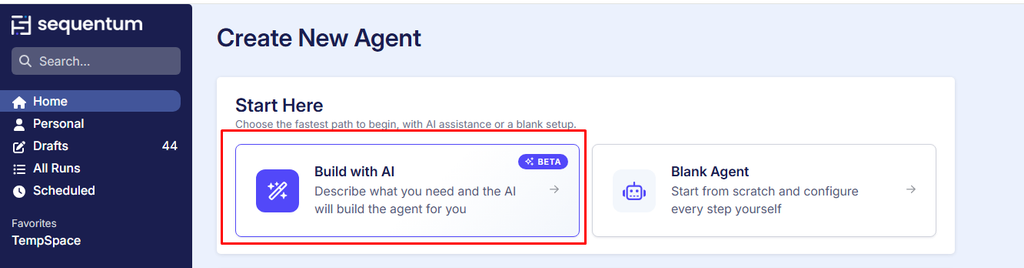
Step 1: Open Build with AI
Log in to Sequentum Cloud, open Create New Agent, and click Build with AI
Step 2: Enter the Prompt
In the Agent Builder box, enter your prompt.
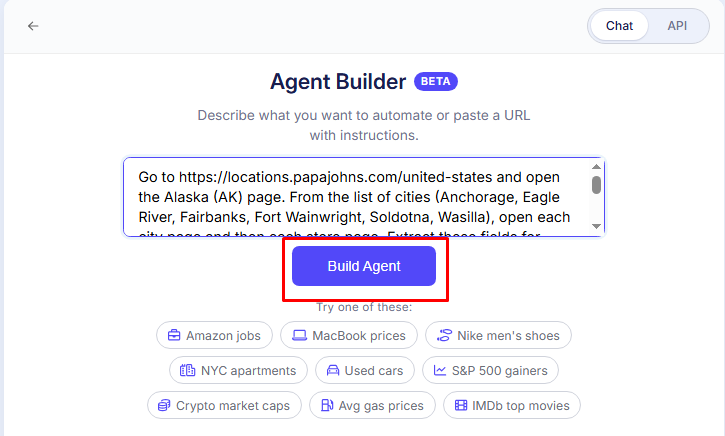
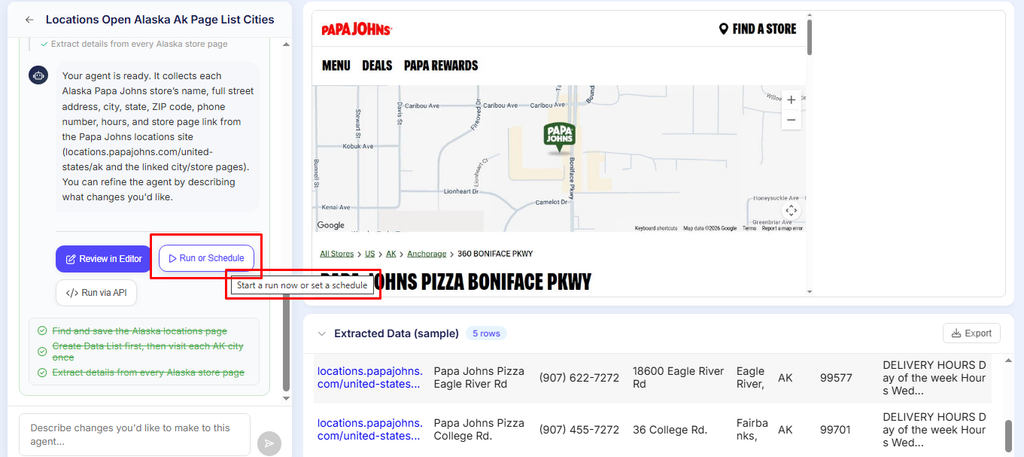
Step 3: Run the Prompt and Watch the Agent Work
Click Build Agent and watch the side panel. It shows the URL the agent runs from and each page it visits, from the Alaska page to each city and store.
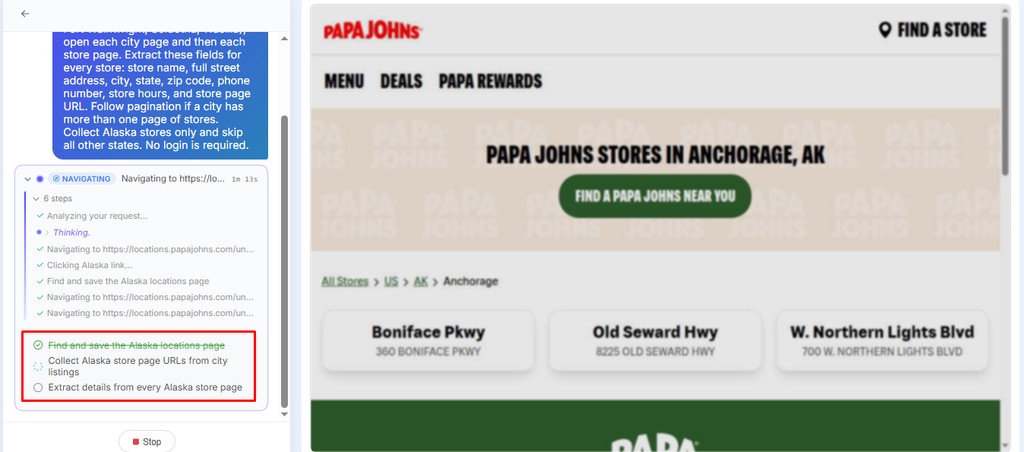
Step 4: Preview the Data and Run the Agent
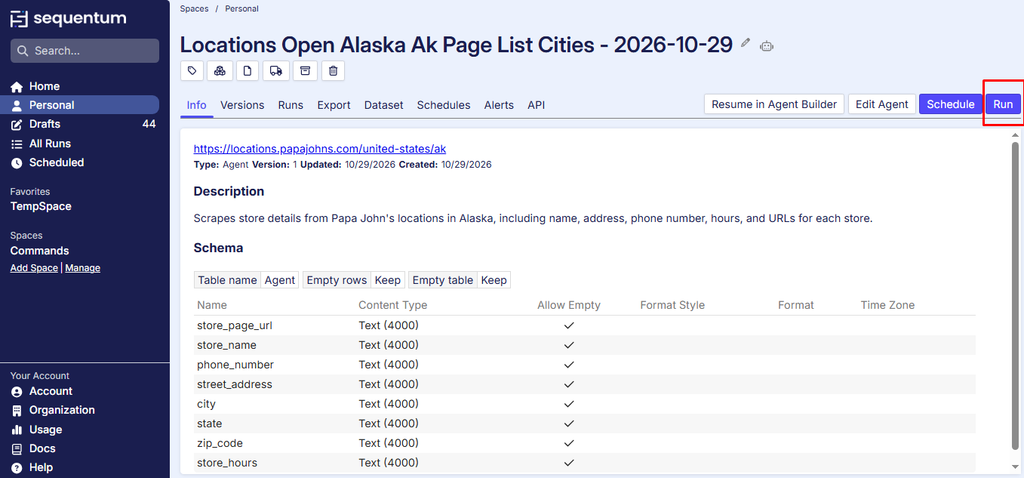
Preview the extracted data, then click Run or Schedule, Run, and Run Now.
The Result
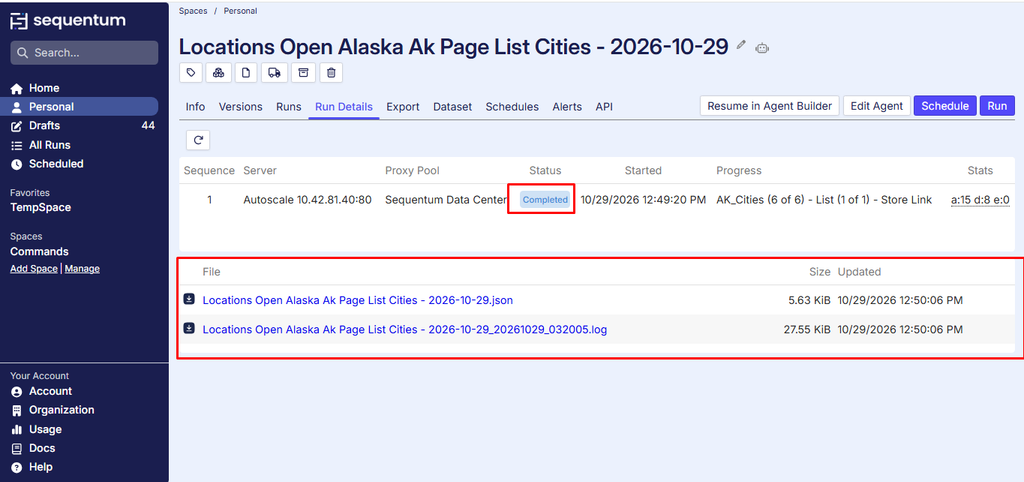
The agent collected records across 15 pages, with 7 fields per record. The agent was ready in about 5 to 10 minutes, and we downloaded the output directly from the dashboard. No code was written, and no developer was needed.
Advantages of Using Agent Builder Alone
A prompt-only build suits simple, well-defined data needs. Here is the value it delivered:
- Plain English Setup: We described the job in simple English. Anyone on the team can do the same, without waiting for a developer to become available.
- Speed to Data: What would normally take days of development was ready in minutes. Most simple agents are ready in under two minutes.
- Automatic Pagination: The agent moved through every page of results without any extra configuration, so no records were left behind on page one.
- Sublist and Nested Data Handling: Layered data, such as categories with sub-items, was extracted into a clean and structured output.
- Built-In Unblocking: If a website resists scraping through CAPTCHAs or IP blocking, Agent Builder works through it with human oversight, so the agent keeps running without manual workarounds.
- Live View of the Scraping Process: The side panel shows the scraping process as it happens, including the URL the agent runs from and each page it navigates to. This lets you confirm that the data comes from the website you named. It matters because some AI scrapers, when they cannot find the right data, may move on to another website to fill the gap. The result then no longer matches the source you asked for.
- Cost-Effective Data Collection: A fully working agent without development hours keeps the cost of data collection low, even at high volume.
What We Learned
- Detail in the Prompt Matters: The more specific our prompt was about the URL, navigation, fields, pagination, and items to skip, the closer the first build came to what we wanted.
- The Preview Is a Quick Quality Check: Reviewing the data preview before running the agent showed us right away whether the fields were correct.
- Prompt-Only Works Best for Clear Needs: When the data need is simple and well defined, a prompt alone is enough to go from request to data.
Use Case 2: Agent Builder with the Visual Editor
The Need
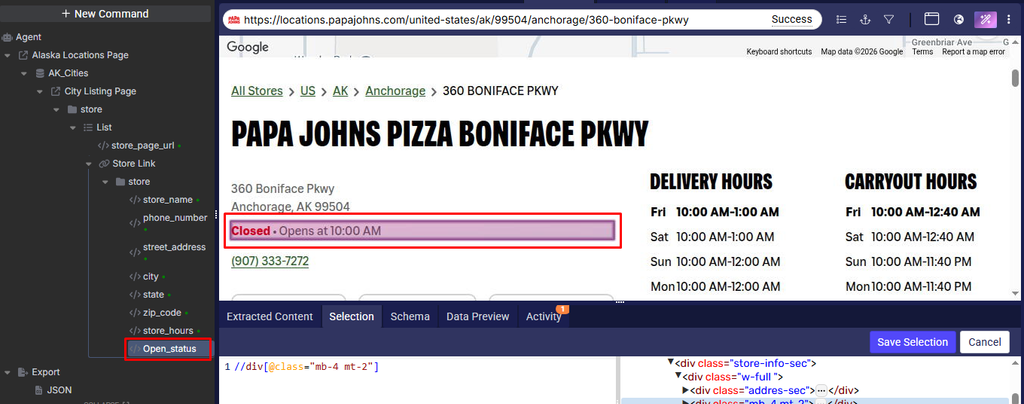
We used the same agent that collects Papa John’s store location data for Alaska from locations.papajohns.com, but it needed more. This is a common pain point: the data you receive is close to what you need, but a key field is missing, and decisions made on incomplete data are weaker. In this case, the AI did not capture the open status of each store, so we added it ourselves in the Visual Editor.
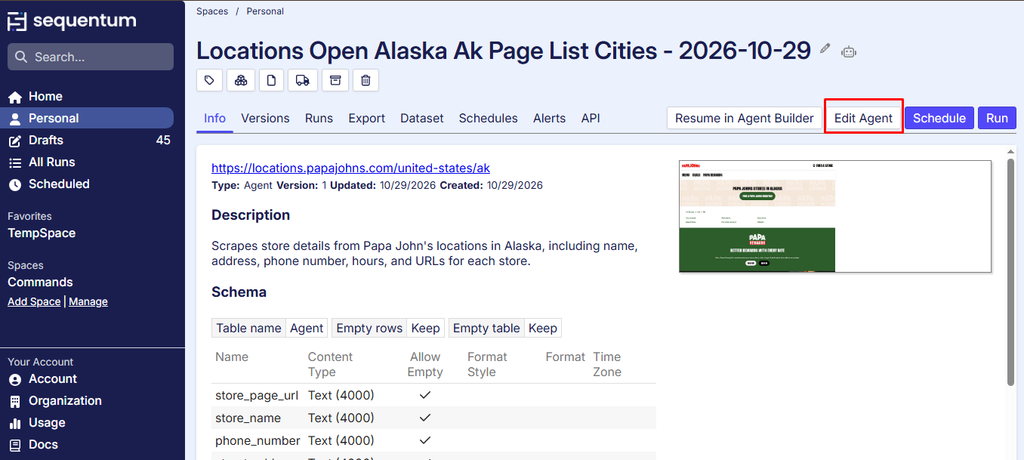
Step 1: Open the Same Agent and Click Edit Agent
Go to the same agent you built in Use Case 1 and click Edit Agent
Step 2: Add the Extra Fields
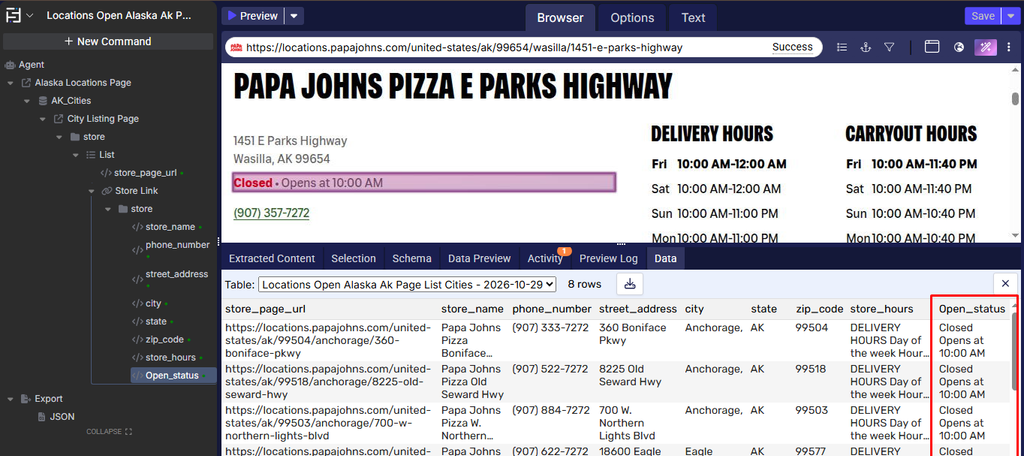
Add the extra fields in the editor: open status field. No code is needed.
Step 3: Run the Agent from the Editor
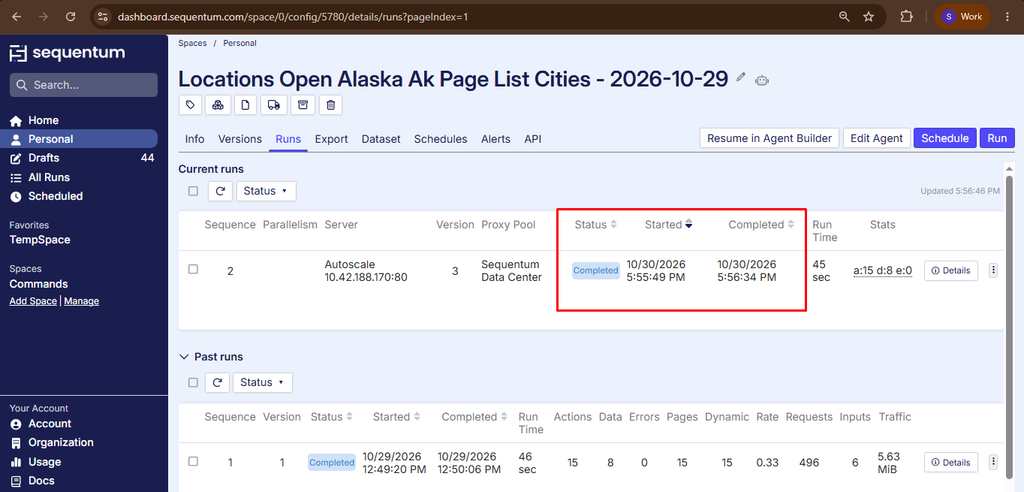
Run the agent from the editor and compare the output with the first version.
The Result
The final agent collected the same records as Use Case 1, plus one new field: open status. We did not rebuild anything from scratch. We simply adjusted the agent created by Agent Builder and ran it again, and the output matched our exact requirements.
Advantages of Using Agent Builder with the Visual Editor
When data quality drives decisions, control matters. Here is the value this route delivered:
- Rich Visual Editor: We could see exactly what the agent was doing and change it at the atomic level, with no code. This level of precision is hard to get from purely AI-driven scrapers.
- Deterministic and Repeatable Execution: After our changes, the agent ran the same steps every time. Because no AI runs at runtime, there are no surprises in the output.
- Human-in-the-Loop Oversight: We reviewed the agent before running it at scale, so every key decision stayed in our hands. This supports compliance and data accuracy.
What We Learned
The First Build Is a Strong Starting Point: Agent Builder captured the core fields, so we only had to refine the agent instead of building it from scratch.
- Adding Fields Is Simple: The extra fields went in through the editor with no code and no rebuild.
- Seeing Every Step Builds Trust: Because the editor shows exactly what the agent does, we knew what we were getting before the agent ran at scale.
- Changes Stay Controlled: Our edits were made on a versioned agent, so the run stayed repeatable after the changes.
Which Route Is Right for You?
Choose Agent Builder alone when the data need is simple and you want results fast. Add the Visual Editor when you need extra fields, tighter control, or a production-ready agent that your team can review and trust. Both routes produce the same thing: a real, versioned agent that runs on Sequentum Cloud, backed by SOC 2 Type II certified security.
Conclusion
Agent Builder gives teams two clear paths to reliable web data. One is fast and simple, and the other adds control and precision. In both cases, AI builds the agent and fixed, repeatable steps run it, which keeps your data consistent and your pipelines safe.
Ready to build your first agent? Start with Agent Builder in Sequentum Cloud today.